
Vue.js 3 Meets Drupal: an Integration Guide
A short how-to on the integration of multiple Vue.js 3 apps into a Drupal-based website.
Disclaimer: Our Tech Blog is a showcase of the amazing talent and personal interests of our team. While the content is reviewed for accuracy, each article is a personal expression of their interests and reflects their unique style. Welcome to our playground!

Looking back at my first year at SparkFabrik, I was amazed at how much trust Spark put in me. The magnitude of the projects I’m having the opportunity to contribute to, has been the turning point in my journey as a front-end developer. No more words are needed to say that the time to share something I learned had undoubtedly come. And so here we are! At the start of a post about the integration of multiple Vue.js 3 apps in a Drupal-based website.
When we need to add interactive sections to a Drupal website, the first thought goes to Drupal behaviors. Plain JavaScript plays really well in adding interactivity to a website, but when these sparks of life start to turn into more complex implementations, the introduction of a framework is a no-brainer. A cleaner, more maintainable codebase is something to always strive for, if we aim at building a structured project that in the long run piles up as little tech debt as possible.
Just a side note: Vue.js isn’t the only viable solution to the aforementioned problem of course, but it surely is the go-to framework when the objective is to integrate in a Drupal website many lightweight JavaScript apps offspring of an automated build step.
A Custom Module is Our Starting Point
The basic idea is to be able to develop all our Vue.js apps inside a custom module that registers one custom block for each app. So that adding a Vue.js app to a webpage will actually boil down to placing a block into a region of that page. In other words, it will be a native Drupal experience.
To start with, let’s create a new folder, vue_apps, inside web/modules/custom, with just a basic vue_apps.info.yml file into it:
# web/modules/custom/vue_apps/vue_apps.info.yml

name: Vue Apps Module
type: module
description: "Vue apps for my Drupal 11 site"
package: Custom
core_version_requirement: ^10 || ^11
Before going on, we don’t have to forget to enable the just created custom module:
$ drush en vue_apps
Next, as anticipated, we need a custom block for each of our Vue.js apps.
At the very least, each block must do two things:
- Add to the hosting webpage a container (HTML tag) inside which Vue.js will render the app
- Tell Drupal to include a library composed of at least the compiled JavaScript of the app
And this translates into creating the folder vue_apps/src/Plugin/Block, where we will save our custom block files, each following a blueprint similar to this one:
<?php
// web/modules/custom/vue_apps/src/Plugin/Block/BannerVueAppBlock.php

namespace Drupal\vue_apps\Plugin\Block;

use Drupal\Core\Block\Attribute\Block;
use Drupal\Core\Block\BlockBase;
use Drupal\Core\StringTranslation\TranslatableMarkup;

/**
 * Provides a 'Banner Vue App' Block.
 */
#[Block(
  id: "banner_vue_app_block",
  admin_label: new TranslatableMarkup("Banner Vue App Block"),
  category: new TranslatableMarkup("Custom")
)]
class BannerVueAppBlock extends BlockBase {

  /**
   * {@inheritdoc}
   */
  public function build() {
    return [
      '#markup' => '<div id="banner-vue-app"></div>',
      '#attached' => [
        'library' => [
          'vue_apps/vue.banner',
        ],
      ],
    ];
  }

}
Setting up the Vue.js 3 project
Let’s have some fun now!
What we have to do at this point is the following:
- Create a new Vue.js 3 project named
vue - Add the source code of our apps to the bundle
- Customize Vite’s configuration so that when we build the project, the
distfolder will contain at the very least these JavaScript files:- One
.jsfor each app - One
.jsfor all our custom code shared among our apps - One
.jsfor all the vendors’ related code included in our apps
- One
The final structure of our custom module’s folder will be something like this:
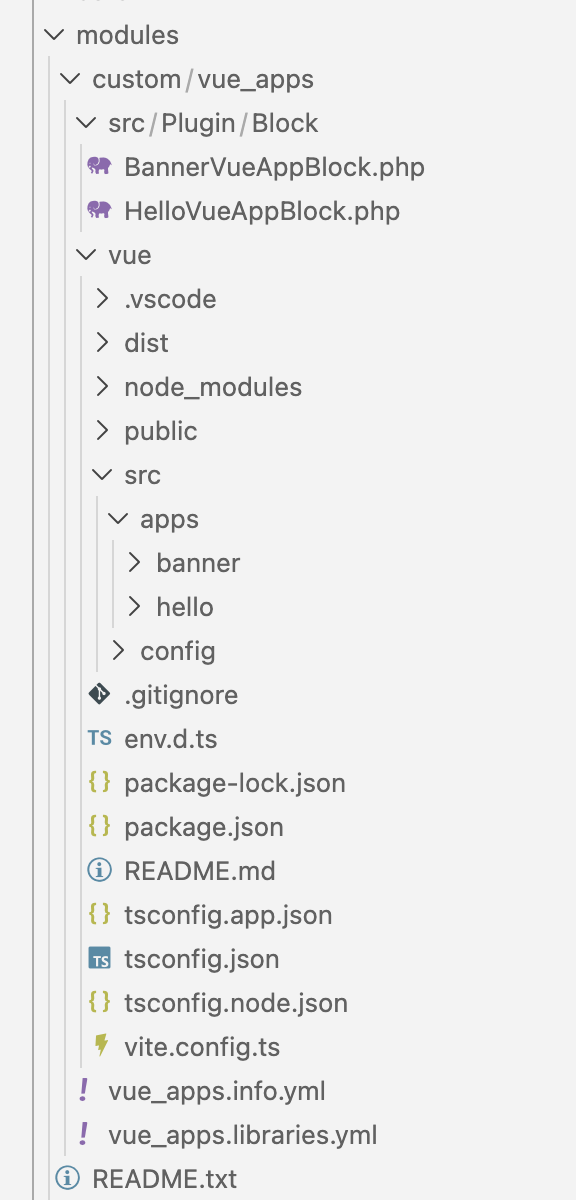
Scaffolding the Vue.js project
The most straightforward way to complete the first step, is to use create-vue, the official scaffolding tool of Vue.js:
$ cd web/modules/custom/vue_apps
$ npm create vue@latest
Even though the features you’ll enable during this setup process strictly depend on your project’s needs, whenever possible, I strongly recommend to enable TypeScript, not only to uplift your development experience, but also to reduce the likelihood to be faced with runtime errors.
Fueling our Creativity
The second step starts by replacing the whole content of the vue_apps/vue/src folder, with a subfolder, namely an apps folder, coupled with any other directory or loose file your creativity will need to develop your apps. More than anything else, at this stage there are three main things we have to take care of:
- the source code of each Vue.js app is saved in a distinct subfolder of
vue_apps/vue/src/apps - all the code common to two or more of your apps is saved in directories that are siblings of
vue_apps/vue/src/apps - each one of your apps is mounted in an HTML element whose id is the same used inside your custom block
For example, the Vue.js app for our custom block BannerVueAppBlock would be mounted as follows:
// web/modules/custom/vue_apps/vue/src/apps/banner/main.ts

import { createApp } from 'vue'
import App from './App.vue'

createApp(App).mount('#banner-vue-app')


// web/modules/custom/vue_apps/vue/src/apps/banner/App.vue

<script setup lang="ts">
import { globalConfig } from "../../config";
</script>

<template>
  <p>
    We are
    <img
      alt="SparkFabrik"
      height="48"
      width="250"
      :src="`${globalConfig.imagesPath}/sparkfabrik-logo.png`"
    >
  </p>
</template>

<style scoped>
  p {
    font-size: 1.5em;
    font-weight: bold;
  }
</style>
The Custom Vite Configuration
By default, create-vue scaffolds projects that are supposed to be Single Page Applications (SPA). That’s the reason why in the project there is an index.html file, the entry point of every SPA. However, our goal is to be allowed to launch npm run build and automagically find all our compiled Vue.js apps each in their own file under the dist folder. To achieve this, we have to customize a little the vite.config.ts file.
In practice, what has to be done is something like this:
// web/modules/custom/vue_apps/vue/vite.config.ts

import { fileURLToPath, URL } from "node:url";
import { resolve } from "node:path";

import { defineConfig } from "vite";
import vue from "@vitejs/plugin-vue";
import vueDevTools from "vite-plugin-vue-devtools";

// https://vite.dev/config/
export default defineConfig({
  plugins: [vue(), vueDevTools()],
  resolve: {
    alias: {
      "@": fileURLToPath(new URL("./src", import.meta.url)),
    },
  },
  build: {
    outDir: "dist",
    emptyOutDir: true,
    minify: true,
    rollupOptions: {
      input: {
        hello: resolve(import.meta.dirname, "src/apps/hello/main.ts"),
        banner: resolve(import.meta.dirname, "src/apps/banner/main.ts"),
      },
      output: {
        entryFileNames: "js/[name].js",
        assetFileNames: "assets/[name].[ext]",
        manualChunks: (id) => {
          if (id.includes("node_modules")) {
            return "vendor";
          }
        },
        chunkFileNames: (chunkInfo) => {
          if (chunkInfo.name === "vendor") {
            return "js/chunk-vendor.js";
          }

          return "js/chunk-common.js";
        },
      },
    },
  },
});
The main addition to the default configuration has been the build object. As you can read, the key point of all our customization is the rollupOptions entry (Rollup is Vite’s bundler):
- The input object’s entries are one for each of our apps. The key of each entry is the name of the final, vanilla JavaScript file. The value is the absolute path to the main source file of the app.
- The manualChunks and chunkFileNames are the callbacks used to direct all the code coming from the
node_modulesfolder to achunk-vendor.jsfile, and all the code that is common to our apps (namely all the code outside thevue_apps/vue/src/appsfolder but insidevue_apps/vue/src) to achunk-common.jsfile. - entryFileNames tells Rollup the pattern to follow for the filename of the JavaScript files.
- And finally, assetFileNames instructs Rollup about the pattern of the filename for all other files, for example, CSS and media files (more on this later).
It is important to note that the main purpose of the entryFileNames and assetFileNames settings is to get rid of the random, default tokens Rollup includes in the filename of our final JavaScript files. As you will find out in a moment, we need predictable and immutable filenames for the whole setup to work: cache busting will be automatically handled by Drupal itself.
Now we can safely dispose of the vue_apps/vue/index.html file, because it’s no longer needed for our multi-app setup. And if we try to launch npm run build at this very moment, all of the artifacts of the build step we will need to render our apps, will be neatly saved to the vue_apps/vue/dist folder.
The Missing Piece: the Drupal Libraries Definitions
When we created the custom Drupal blocks, we said that each block carries with it a Drupal library responsible for instructing Drupal about the files each app needs to be rendered. So the final step is to define such libraries in a freshly created file by the filename of vue_apps/vue_apps.libraries.yml:
# web/modules/custom/vue_apps/vue_apps.libraries.yml

vue.base:
  js:
    vue/dist/js/chunk-vendor.js:
      attributes:
        type: module
    vue/dist/js/chunk-common.js:
      attributes:
        type: module

vue.hello:
  js:
    vue/dist/js/hello.js:
      attributes:
        type: module
  css:
    theme:
      vue/dist/assets/hello.css: {}
  dependencies:
    - vue_apps/vue.base

vue.banner:
  js:
    vue/dist/js/banner.js:
      attributes:
        type: module
  css:
    theme:
      vue/dist/assets/banner.css: {}
  dependencies:
    - vue_apps/vue.base
Nothing new for a Drupal developer: one library per app with the addition of a shared vue.base library. However, two things are worth a closing comment:
- The final JavaScript files compiled for us by Vite are not old-fashioned plain JS files, but they are instead modern JavaScript modules, which include
exportandimportstatements. So they must be loaded as such by Drupal, otherwise they simply would not work. - Handling the production of the stylesheets, and any other kind of asset your apps need, in the Vue.js project, isn’t a mandatory rule to follow. Here, I did it to show that if you need to, the stylesheets too can be managed in the Vue.js project, but in a real-world scenario it’s very likely that these assets have to go in your custom theme, whose SCSS part already has all you need to style your apps as per the design system used for your project.
Thanks
With the hope that you now have a more clear idea of how to give your Drupal project sparks of interactivity powered by Vue.js 3, I thank you very much for reading about a fragment of knowledge I as much enjoyed acquiring as I enjoyed sharing.
Stay around! But most of all, never lose your spark!